
Earlier this year, Samsung released its new flagship Samsung Galaxy S22 series, which included a smartphone with a professional-grade camera and advanced Nightography features. Now, that camera is even better than before. With a new version of the Expert RAW app and a brand-new app called Camera Assistant, you’ll be able to take photos that look like they were taken by a pro camera.
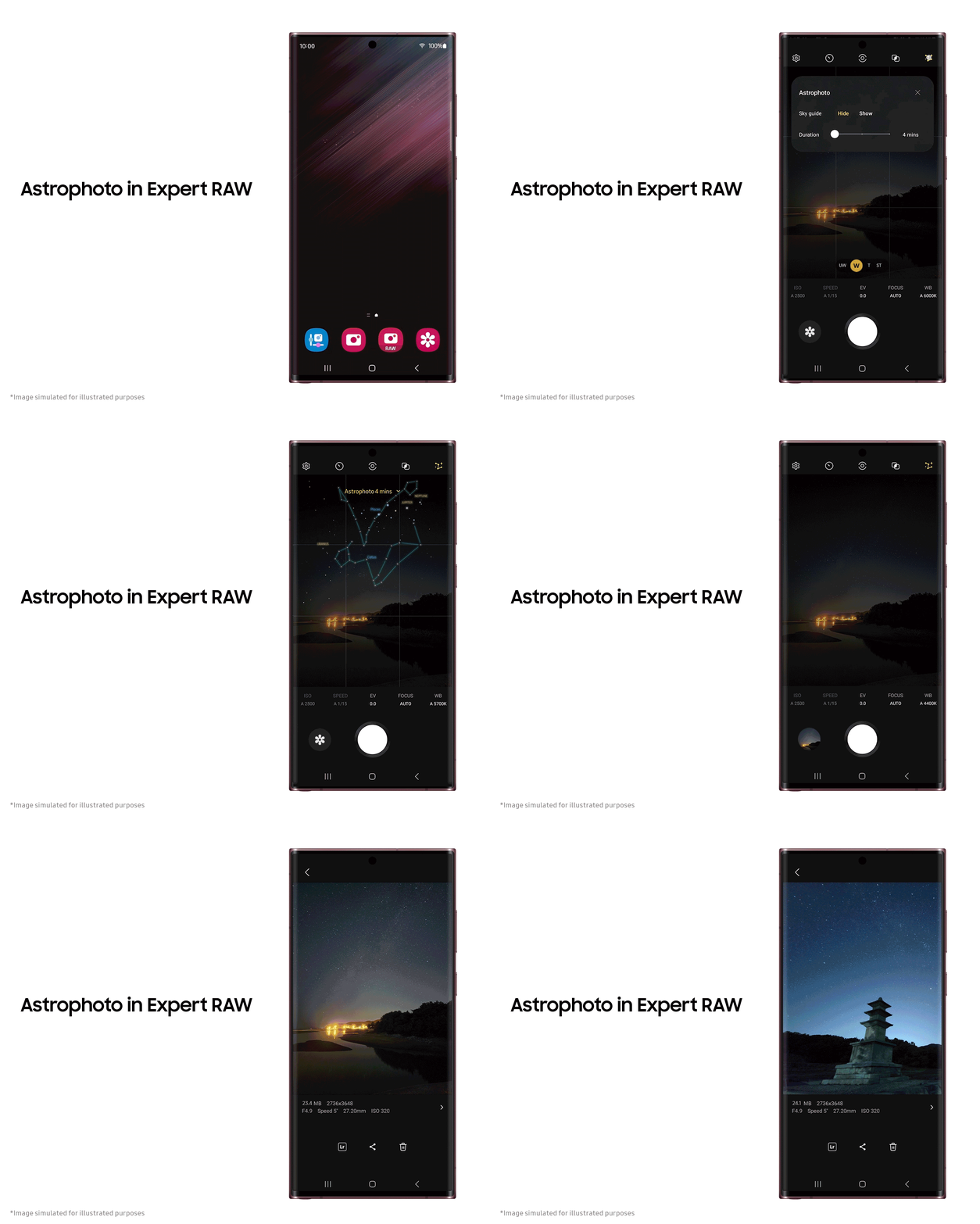
Shooting Astrophoto in Professional RAW
With its powerful Astrophoto feature, the Expert RAW makes the S22’s already good night photography to the next level. With this brand-new feature, stargazers and people who like to be outside can take clear and beautiful pictures of constellations and other things happening in the dark sky.
To find constellations, solar systems, groups of stars, and nebula, all you have to do is turn on the Sky guide. Your camera will take pictures over a set amount of time using advanced AI segmentation technology and multi-frame processing based on the movement of a celestial body. So, you’ll get amazing pictures of stars that look like they were taken with high-end professional gear.
If you like to try out your artistic side, you can use the Multiple exposures feature to take several pictures at once. Then, you can use the Overlay modes to put them all together into one great picture. You can also let your imagination run wild and try out different ways to put images on top of each other to make amazing abstract shots.
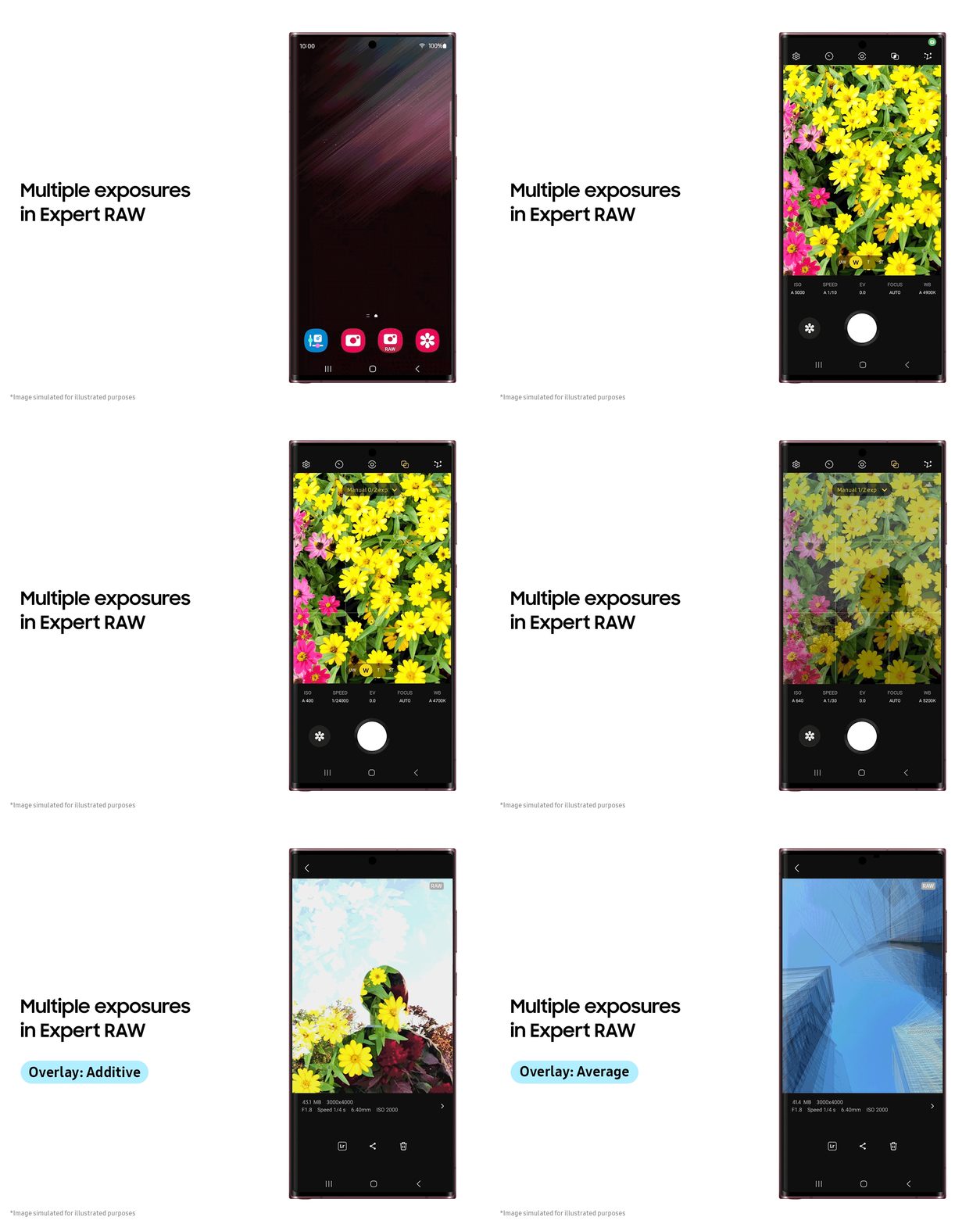
To get to the beta version of Astrophoto and Multiple exposures, go to the Settings menu of Expert RAW and click on Special Photo options.
The galaxy S22 camera app gives you full control over your photo-taking experience
Every serious photographer has their own unique approach to taking pictures, so it’s important to have a camera that lets you do your own thing. You can customize your shooting experience however you like with the new Camera Assistant app’s flexible automated features.
The app is available in both the Galaxy Apps Store and the Good Lock app. Once the app is downloaded and installed, you can access the feature by tapping the app icon, going to the Good Lock app, or selecting Camera Assistant from the Settings menu in your default camera app.
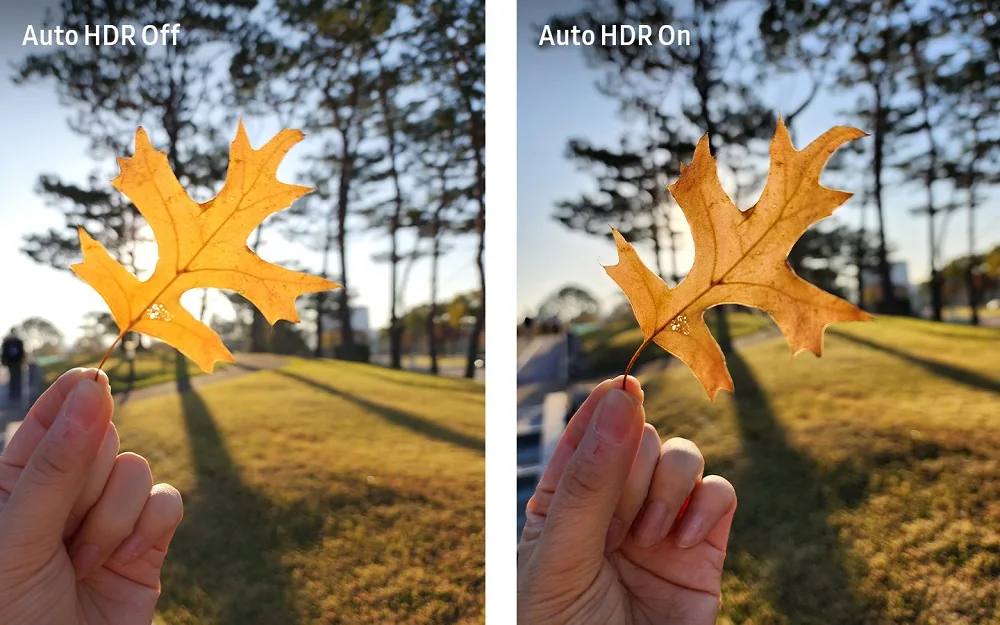
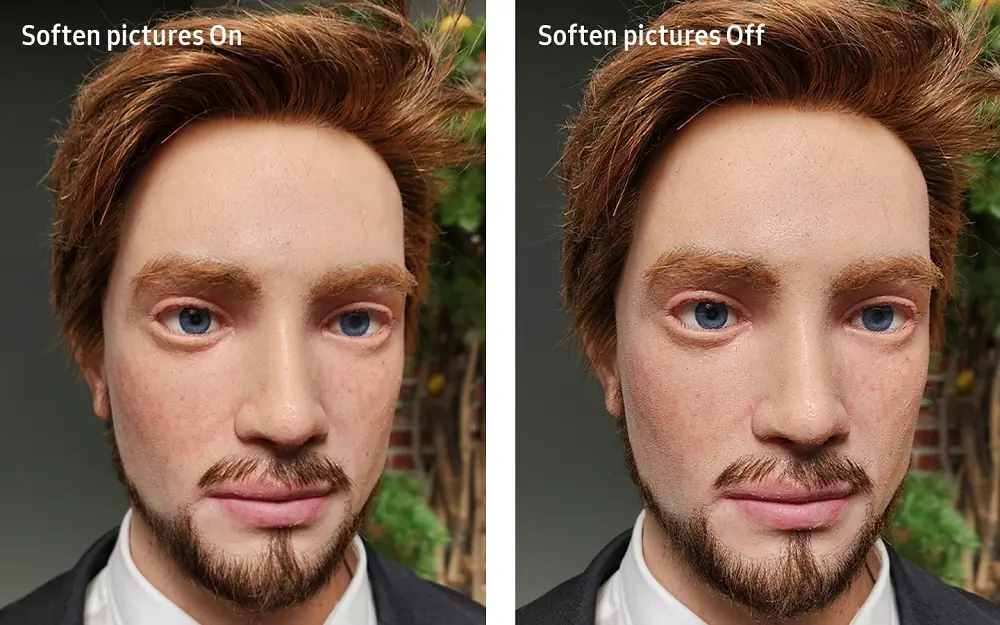
Features like “Auto lens switching“, “Auto HDR“, and “Faster shutter” can be toggled on and off in the Camera Assistant app. In addition, you can customize a variety of settings, such as the number of shots taken when the timer goes off.
The most notable benefits of using the Camera Assistant app are as follows: